The all-in-one tool for home inspectors

Run the wholebusiness fromone place.

Kensa is one app for the field and one office for the desk: inspections that write the report as you walk, online booking checked against your real day, clients and lead tracking, a team room, invoices your clients pay online, and analytics across all of it.

In beta on real inspections. Android today; iOS pending a developer account. Built with Zinc Home Inspections in North Vancouver.

In beta now, on real inspections — built alongside Zinc Home Inspections in North Vancouver.

Offline
The walk never waits for a signal. It syncs from any job site once there is one.
On-device
The PDF renders on the phone and goes out through the share sheet — no server, no round trip.
Any browser
The office opens at the desk or on the road. Nothing to install.
Android 8+
64-bit Android phones, Android 8 and up. Not on Google Play yet — during the beta it updates from the office.

One tool for the whole business.

The field and the desk in one product, so nothing is typed twice and nothing lives in another app. Pick a part to see it.

kensa.report/i/…
The office workspace for the same inspection, open in a browser.
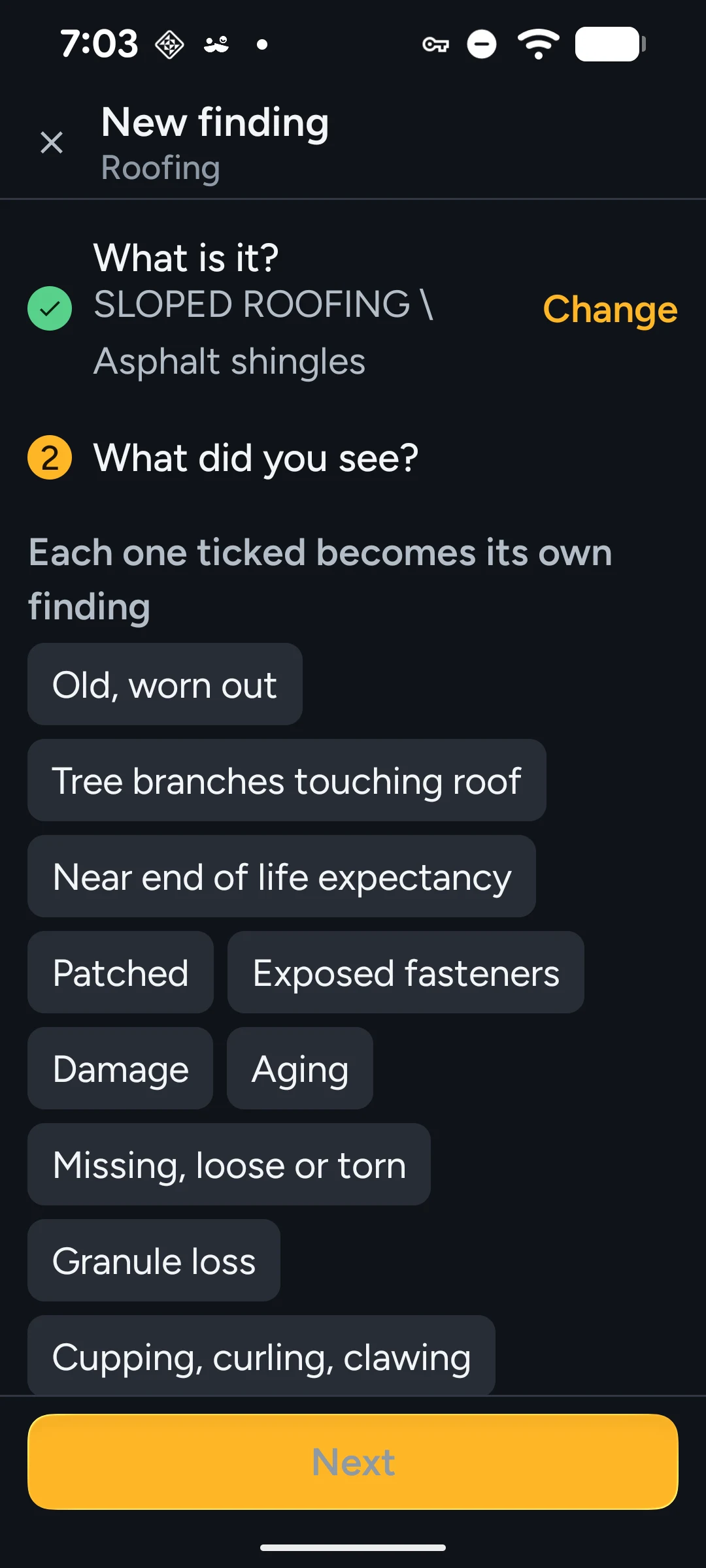
The finding editor on the phone: what is it, what did you see, as pick-lists.

The phone app opens on your sections in the order you walk them. Photos file into the section you are standing in, a batch becomes a finding in the report's own shape, and the PDF leaves from the driveway. The office watches it fill in.

  • Pick-lists from your company's own past reports
  • Works offline; syncs when there is signal
  • FLIR thermal and video clips in the same camera

The app, as it ships

Every screen here is a capture from the beta build on a real phone, not a mock-up. Runs on 64-bit Android phones, Android 8 and up.

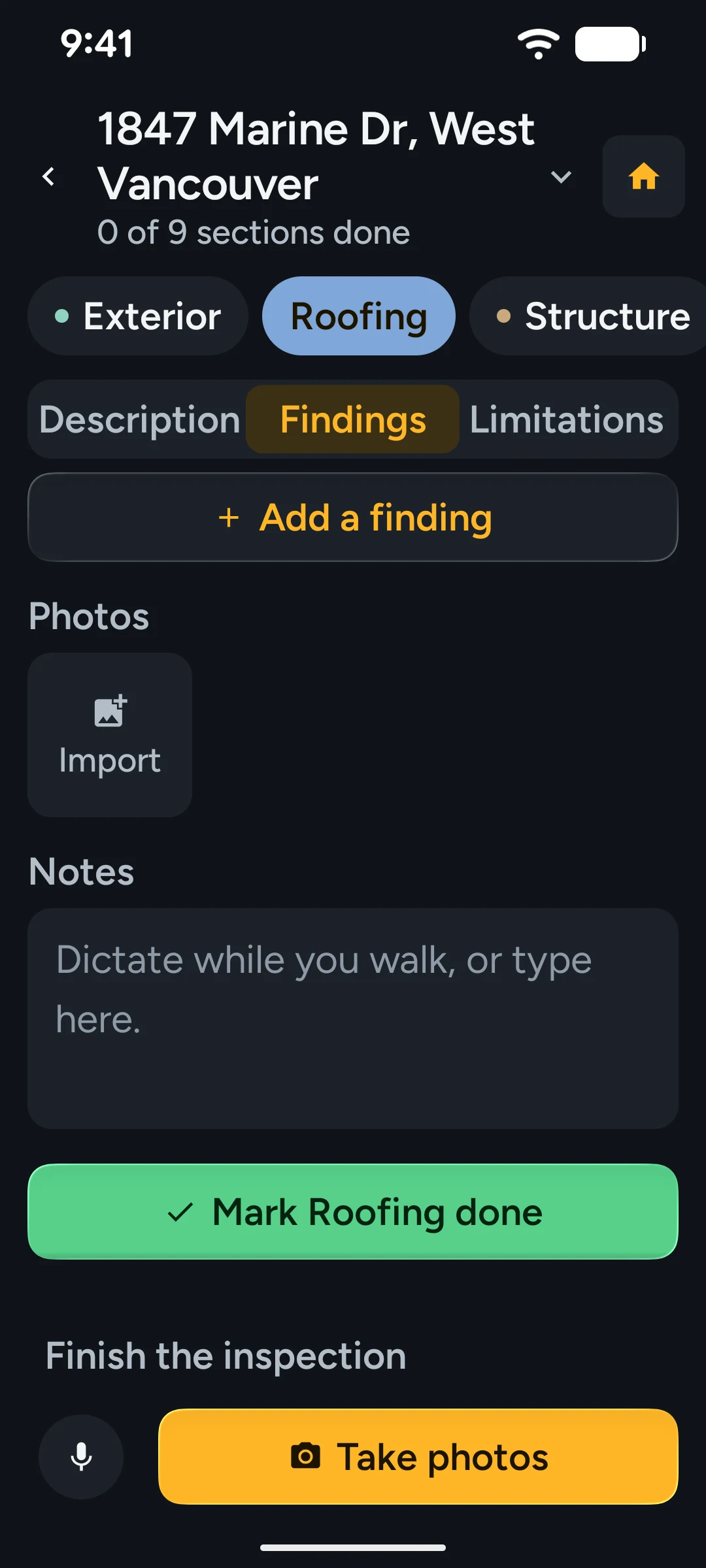
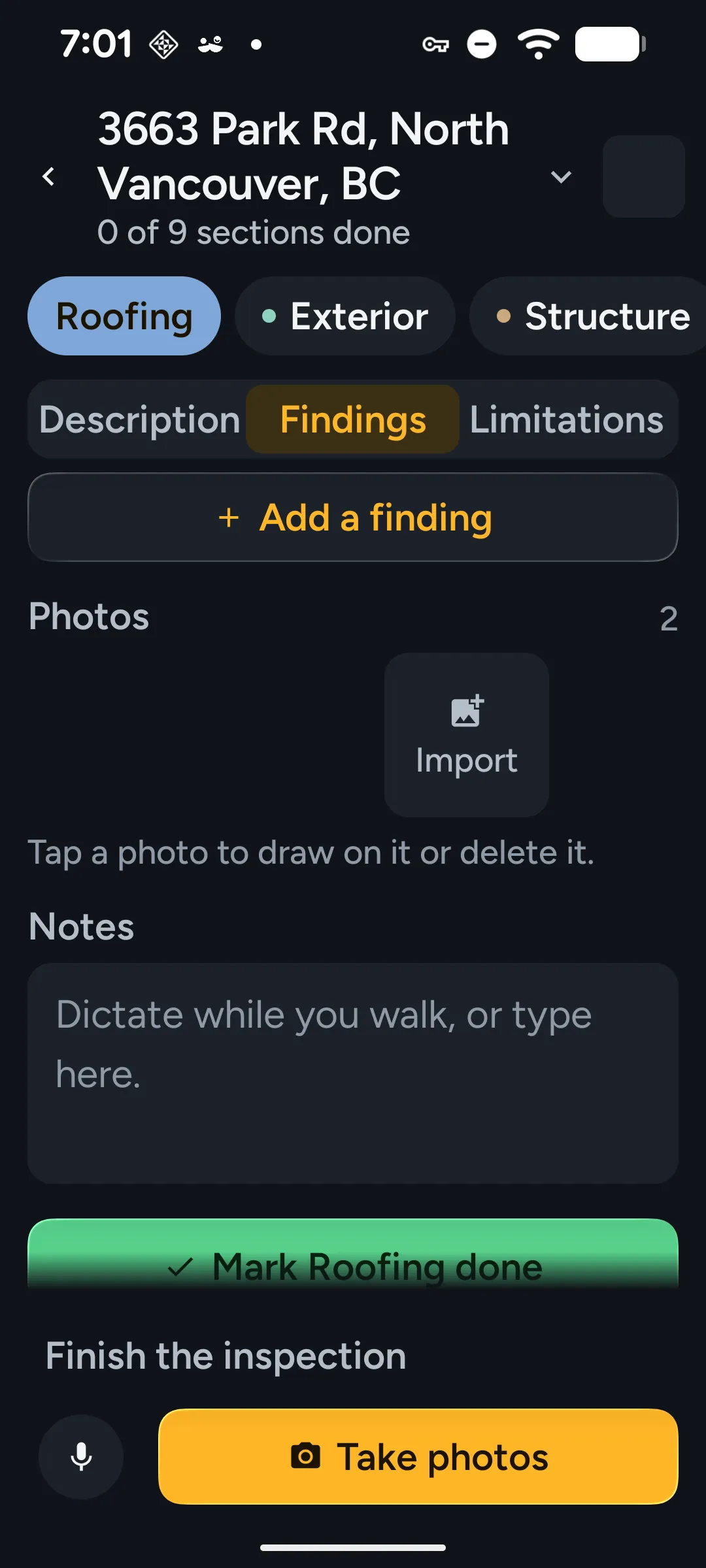
  • Kensa app: sections as tabs.

    Sections as tabs

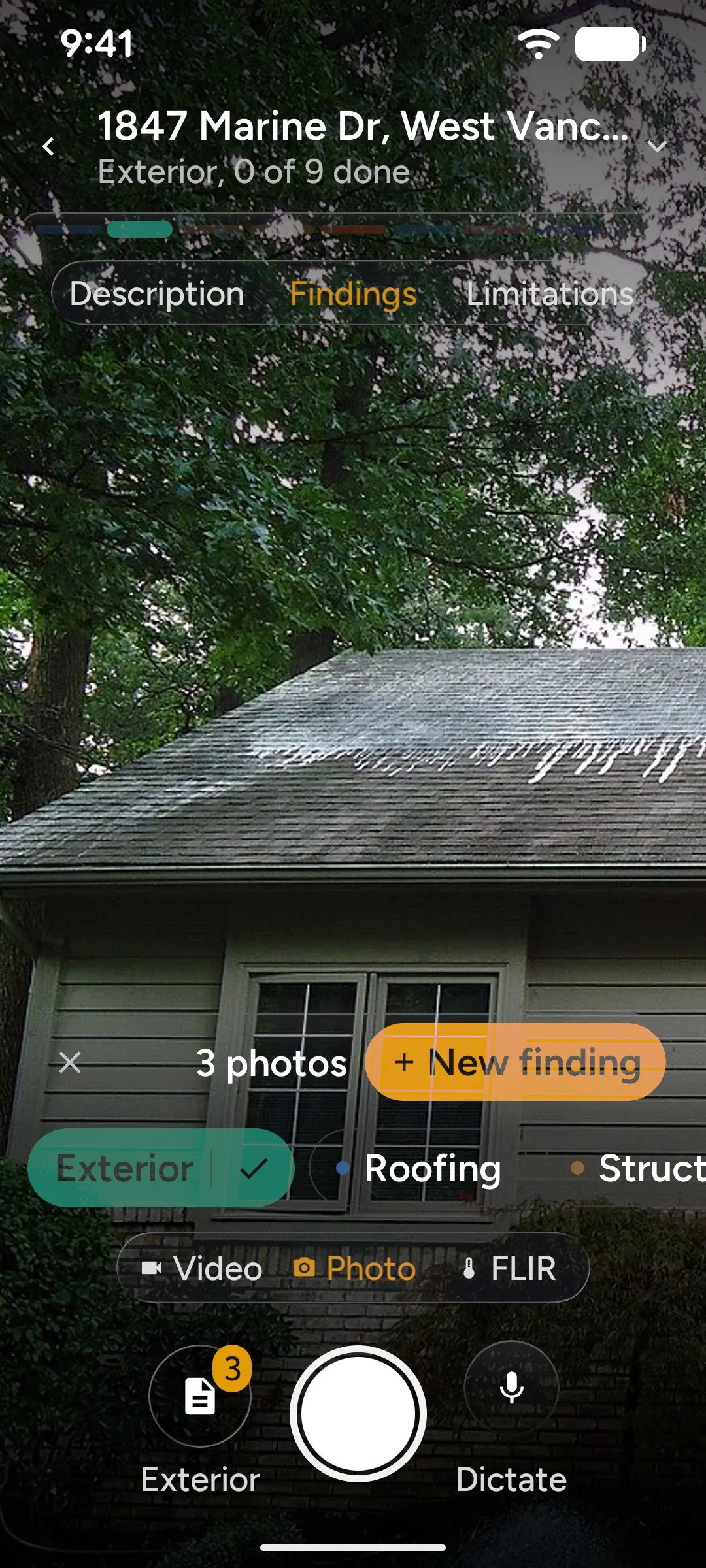
  • Kensa app: shooting, tray filling.

    Shooting, tray filling

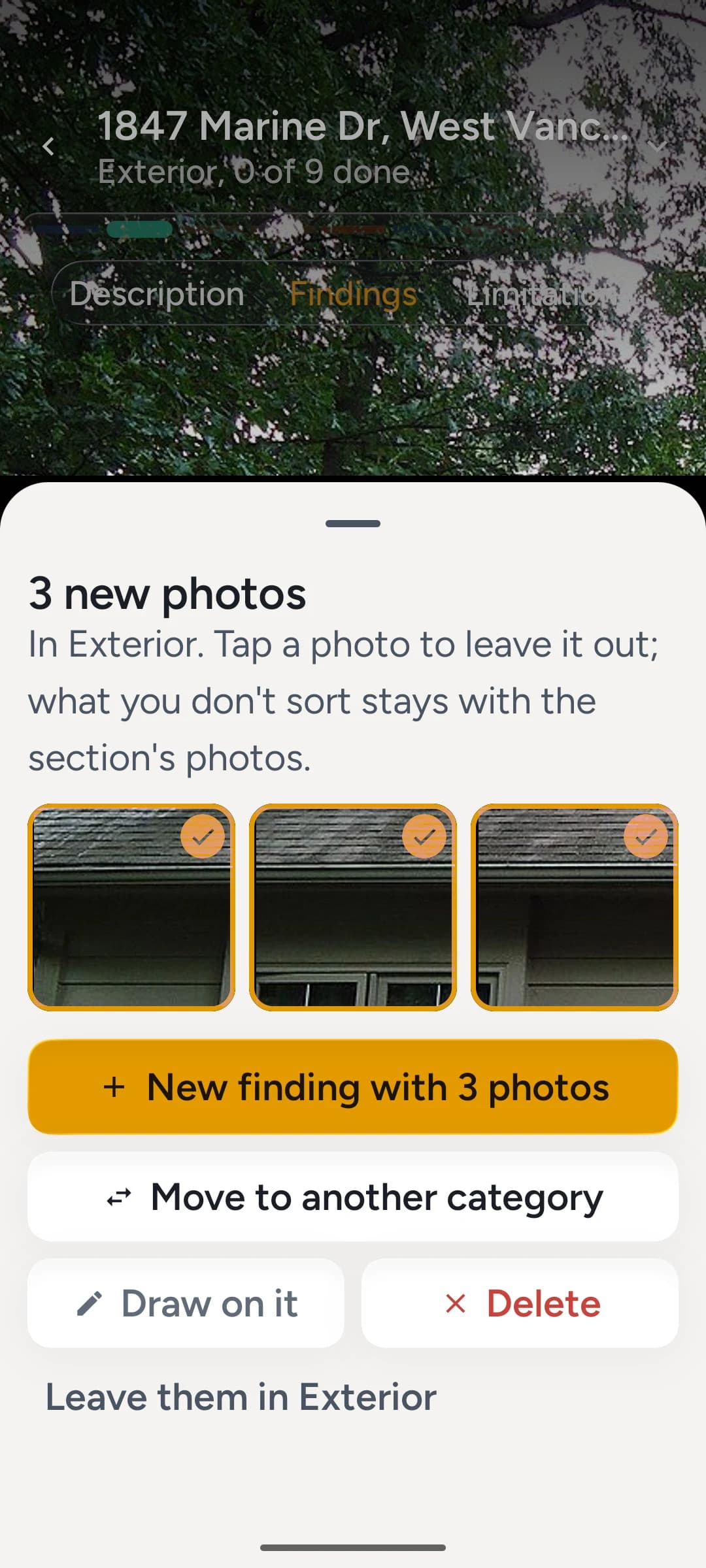
  • Kensa app: a batch, into a finding.

    A batch, into a finding

  • Kensa app: say what you see.

    Say what you see

  • Kensa app: your own components.

    Your own components

  • Kensa app: a finding, written.

    A finding, written

  • Kensa app: the day, drive included.

    The day, drive included

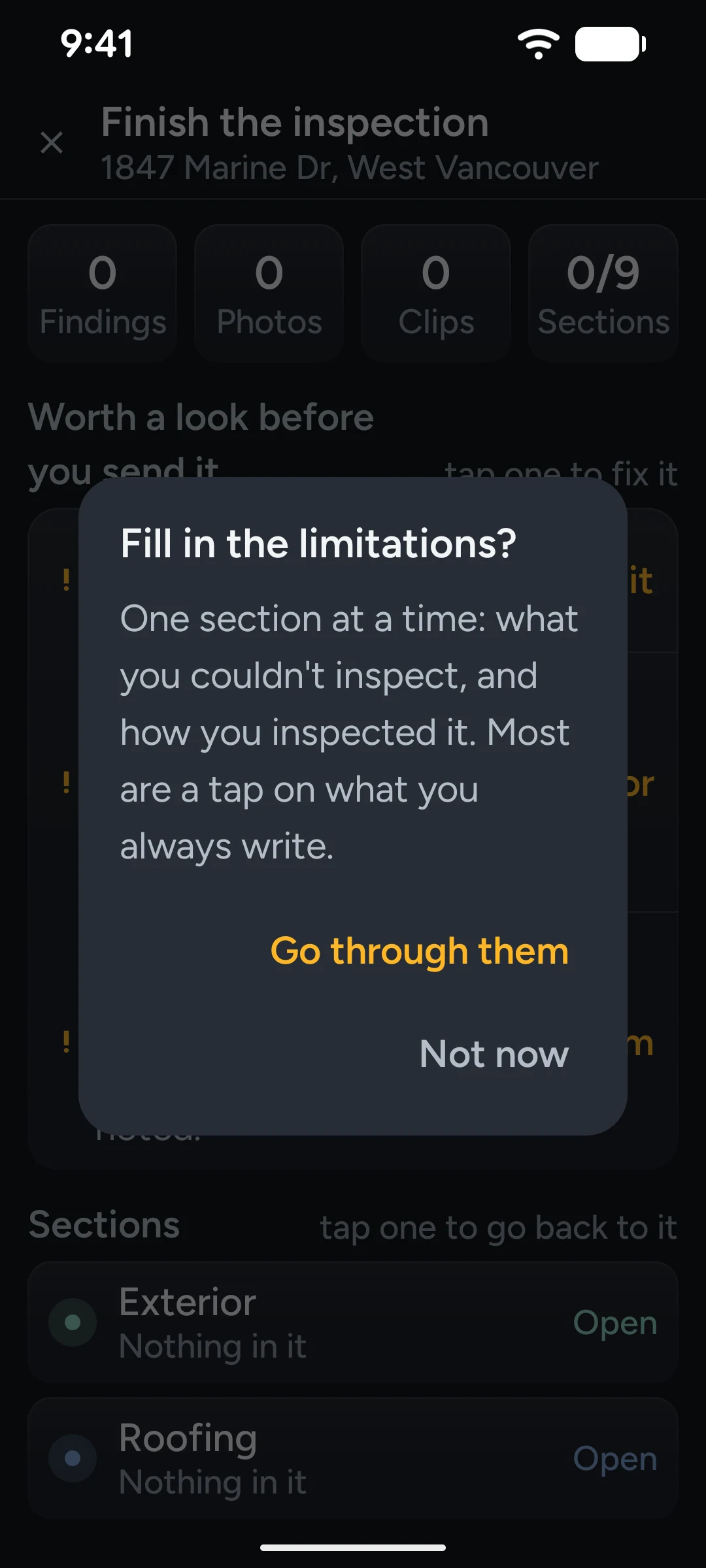
  • Kensa app: limitations, tapped.

    Limitations, tapped

  • Kensa app: the same walk, in light.

    The same walk, in light

  • Kensa app: finished, on the phone.

    Finished, on the phone

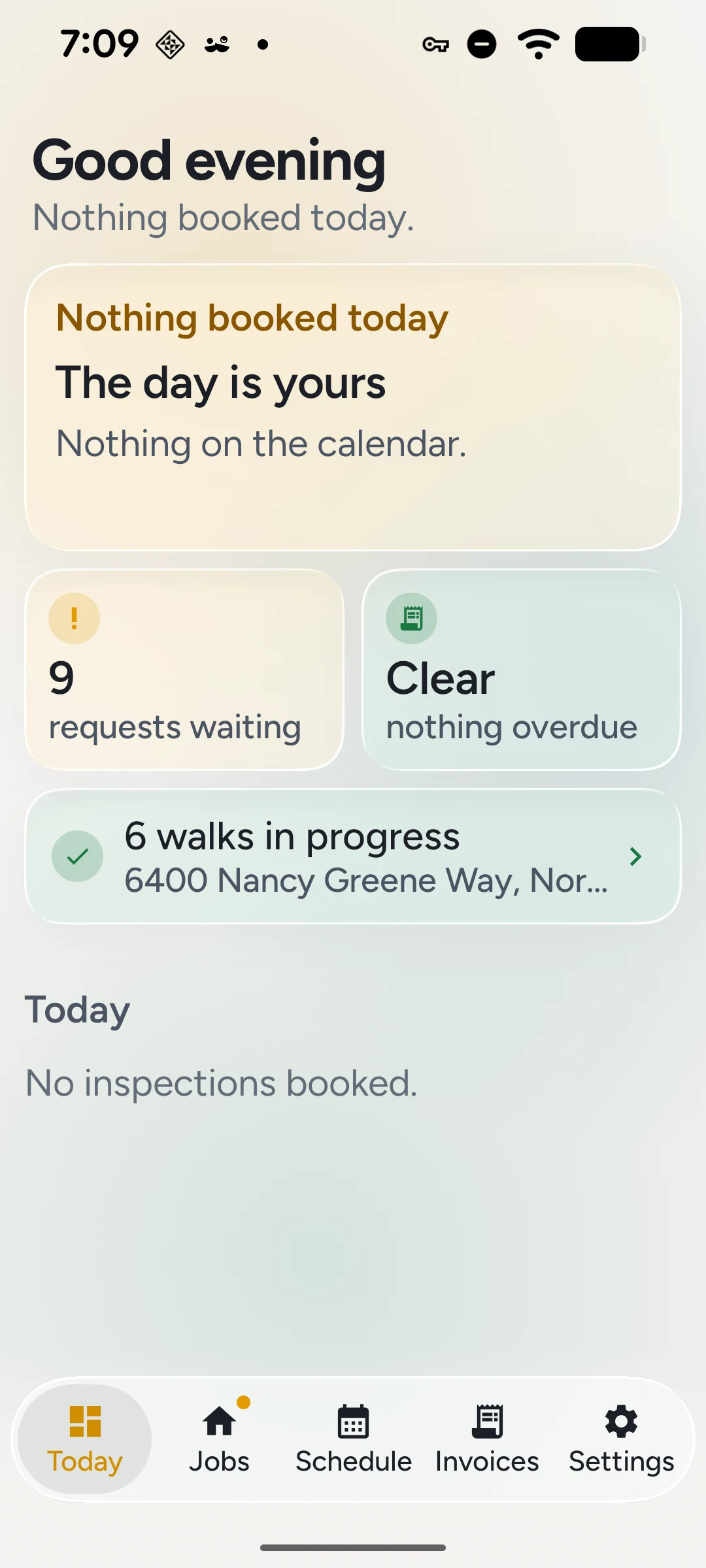
  • Kensa app: today.

    Today

01The evening after the inspection

The inspection ends at four. The report ends at ten.

What gets committed to in the field is already the finding. “Panel is Federal Pacific, double-tapped breaker on the left” is a report line that has been said out loud and then thrown away. Kensa catches it where it is spoken, in the shape the report actually needs, so the work at home is confirming and signing off rather than writing.

Home inspectors spend a large share of every job writing the report, not inspecting. The software most of them use is dated and slow, and the real work — turning rough field observations into clean, professional report language — still happens by hand, usually at a desk hours later.

How it goes now

  1. Shoot photos, scribble notes, dictate to yourself
  2. Drive home
  3. Retype every observation into dated desktop software
  4. Match photos to findings from memory
  5. Send the PDF that night
  6. 10 pm, still at the desk

How it goes with Kensa

  1. Open the section you are standing in
  2. Shoot — the shutter never stops to ask
  3. Sort the batch into a finding, by voice
  4. Export the PDF on the phone
  5. Share it from the driveway
  6. Done before the next job
02The walk

Built around the order you already walk in.

An inspection opens on its sections as tabs, in the order you walk them. Photos land in the section you are standing in, gather in a tray, and become findings when you sort them. Nothing stops to ask you a question mid-shot.

  1. Open

    Your sections, in your order

    An inspection opens on its sections as tabs — in the order you walk a house, not the order a report prints. Move them with arrows, because a drag handle is a poor target in gloves. On a fresh inspection it asks once for a cover photo of the front of the house, and that is the only time it interrupts you.

    Saved per inspection, per phone

  2. Shoot

    The shutter never stops to ask

    Every shot is filed into the section you are standing in the moment you take it, and joins a batch tray at the same time. Keep shooting. Nothing blocks the next photo, and nothing is waiting to be named.

    Regular camera or FLIR ONE

  3. Sort

    Turn a batch into a finding

    Open the tray and every photo in it is already selected; tap to leave one out. New finding with all of them, or add them to one you have already written. What you never sort stays a loose section photo — which is exactly how the report groups it anyway.

    All selected by default

  4. Write

    The finding, in the report's shape

    By voice or by hand: component, condition, implications, location, and task and time. Task and time are pick-lists drawn from the values the company's own past reports actually use, so the common ones are one tap and free text is the escape hatch.

    Task and time in one tap

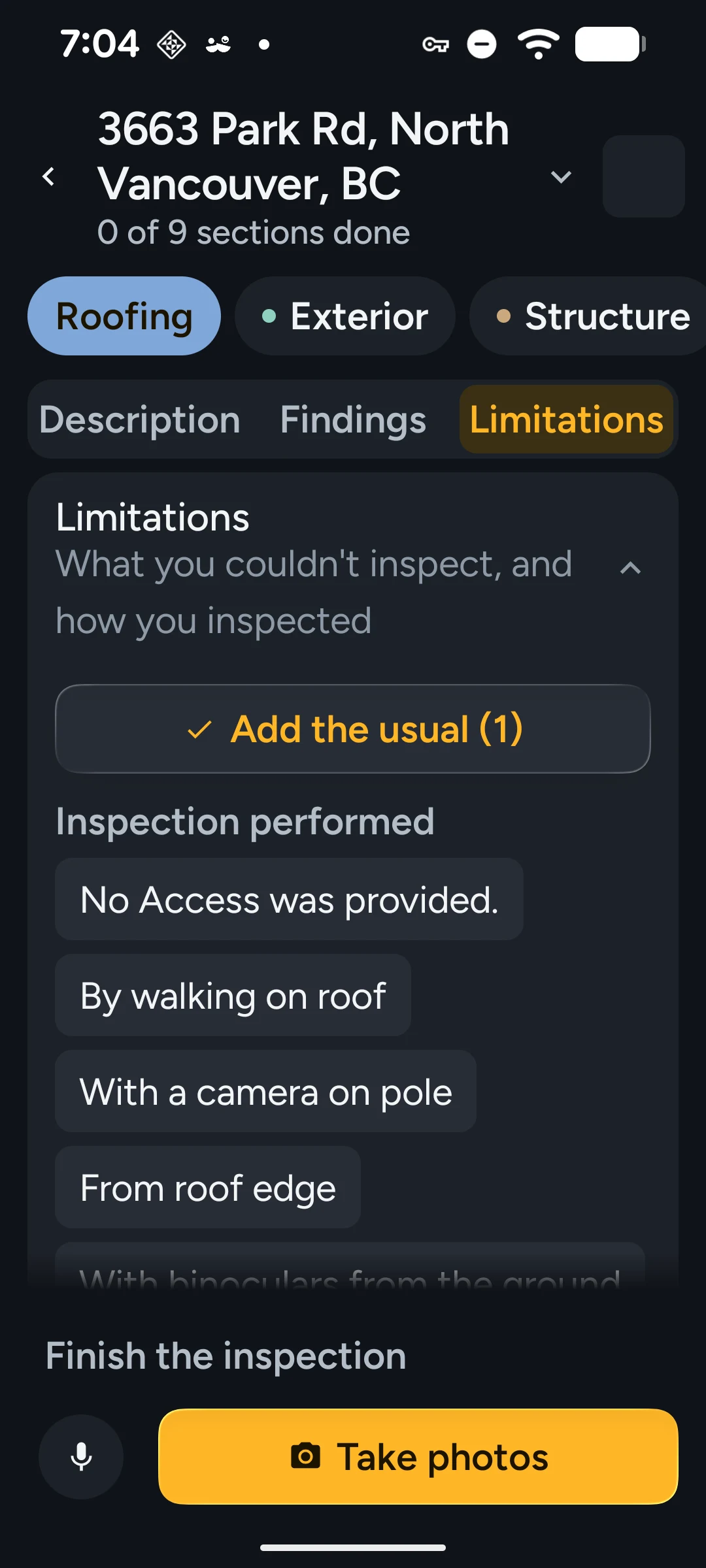
  5. Limitations

    One section at a time, at the end

    Mark the last section done and the limitations run-through opens by itself, walking the sections in order. Every field is a pick-list built from the company's own reports, so it never sits there waiting for you to type.

    Opens when the walk is finished

  6. Deliver

    The PDF, before you leave the driveway

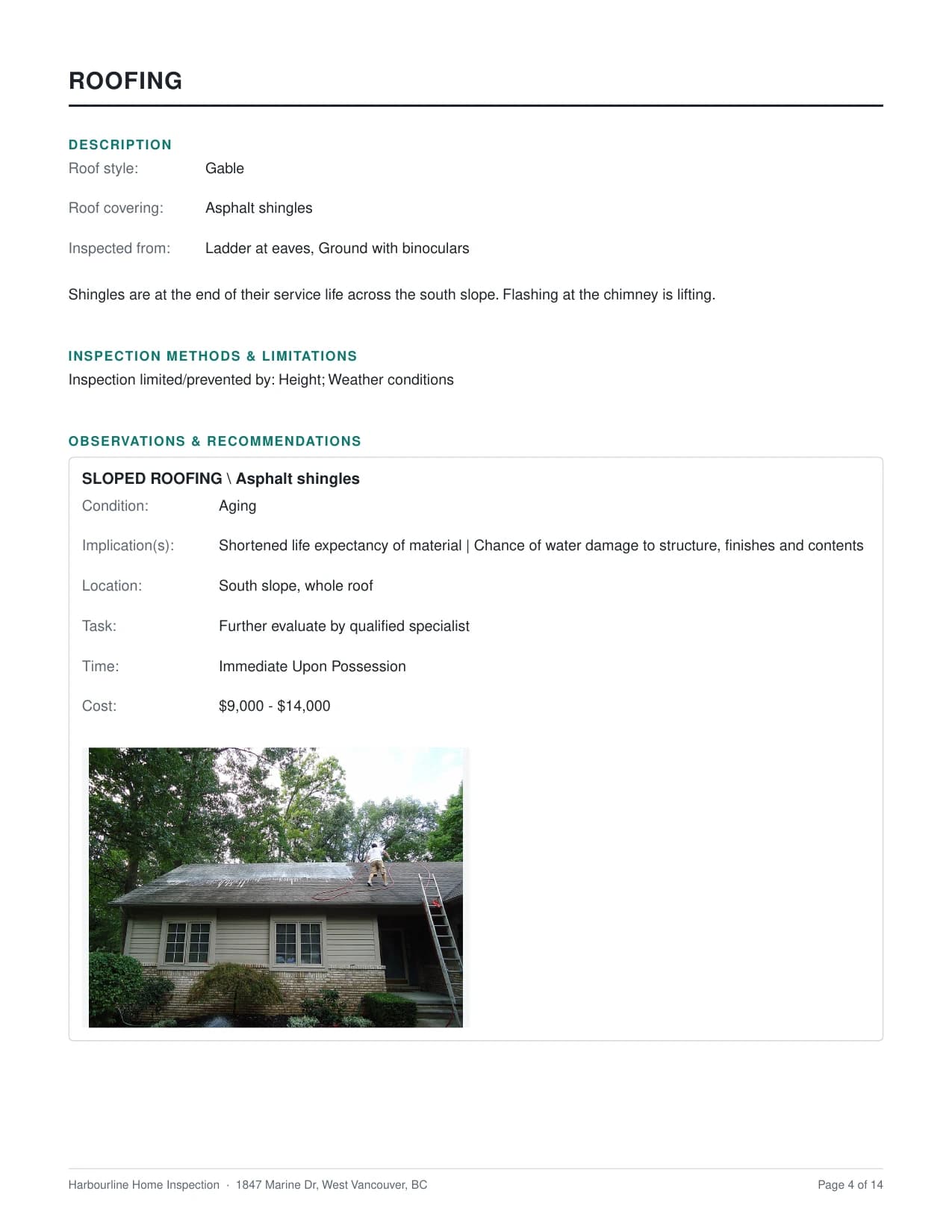
    Export the report on the phone — sections in order, description, findings, photo grids — and hand it to the share sheet. The office has already watched it fill in.

    Rendered on the phone

The report always assembles in this order. The walk does not have to — you set the order of the tabs on the phone, and each section tracks its own status.

Roofing

not started

Exterior

not started

Structure

not started

Electrical

not started

Heating

not started

Cooling & Heat Pump

not started

Insulation & Ventilation

not started

Plumbing

not started

Interior

not started

Dark and light

Reads in an attic, holds up in the sun.

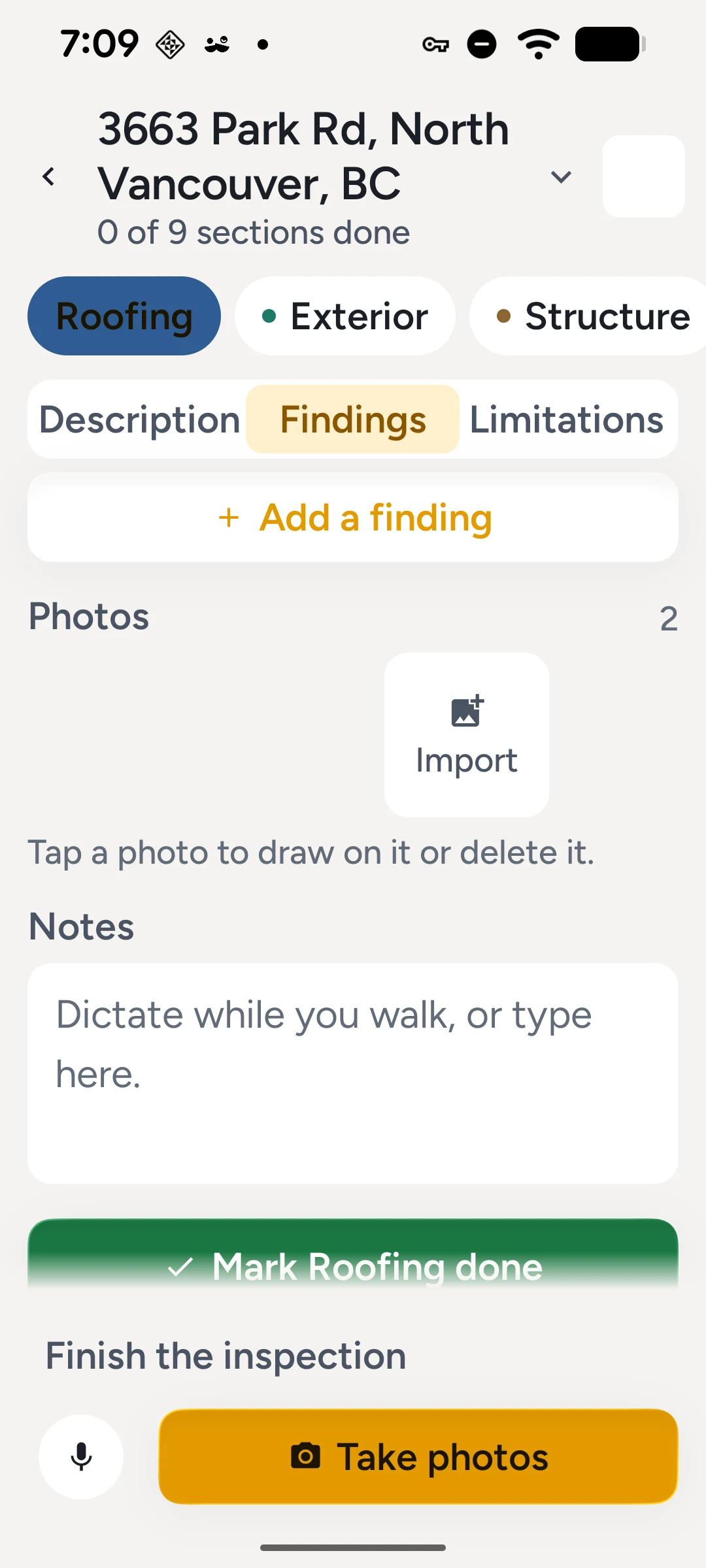
The same walk in both themes. Graphite for a crawl space and a roof at dusk; off-white for a bright afternoon, set like the report itself. Pick one in settings, or follow the phone.

An inspection open on its section tabs in the dark theme.
The same inspection in the light theme.

Things that ruin a day, handled

  • Everything survives an app restart — atomic writes to app-private storage.
  • Portrait-locked, so a rotation can't tear down a capture in flight.
  • Photos come out upright everywhere downstream: markup, upload, office, PDF.

The camera

One shutter, three ways to see.

Video, photo or FLIR thermal: tap the bar or swipe along it, and every shot files into the section you are standing in. With a FLIR ONE attached, the frame turns thermal, with the hottest, coldest and centre temperatures on it.

Scroll to change modes — or tap or drag the bar, and press the shutter.

The camera

One shutter, three ways to see.

  1. PhotoEvery shot files into the section you are standing in, and joins a batch tray to sort later.
  2. VideoClips up to a minute, kept with the section like any photo.
  3. FLIRWith a FLIR ONE or ONE Edge Pro attached (Android 13 or newer), the frame turns thermal, with the hottest, coldest and centre temperatures marked on it.

Scroll to change modes — or tap or drag the bar, and press the shutter.

The thermal frame is illustrative: simulated from an ordinary photo until a real FLIR pair is shot.

The Kensa camera screen on a Pixel: the address, the section tabs, the section chips, and the section and Dictate keys either side of the shutter.
0:00 / 1:00

Thermal

FLIR ONE, in the same viewfinder.

Thermal is not a separate app or a separate camera roll. With a FLIR ONE Edge Pro attached, the viewfinder toggles to the thermal stream and the same shutter captures it. Pick a palette, read the centre spot, and add your own points — drag them, delete them — with the hottest and coldest already marked for you.

One press saves both frames: the thermal image and the ordinary photo, carrying the same spots, so the report can show what the eye saw beside what it could not.

Thermal is a paid add-on and needs Android 13 or newer. Without the camera, everything else works exactly the same.

The thermal frame is illustrative: simulated from an ordinary photo until a real FLIR pair is shot.
03The record

Written once, in the shape the report is made of.

A delivered inspection report is not prose — it is a stack of finding records under category headers. The editor writes that structure directly, so nothing has to be translated later.

ROOF DRAINAGE\Gutters and Downspouts

The header the finding files under

Condition:
Downspout discharges against the foundation

The defect itself

Implication(s):
Water penetration of the basement or crawl space

What it leads to

Location:
Northeast corner

Where — the inspector's call

Task:
Repair

Pick-list: Repair, Replace, Correct…

Time:
Immediately

Pick-list: Immediately, Upon Possession…

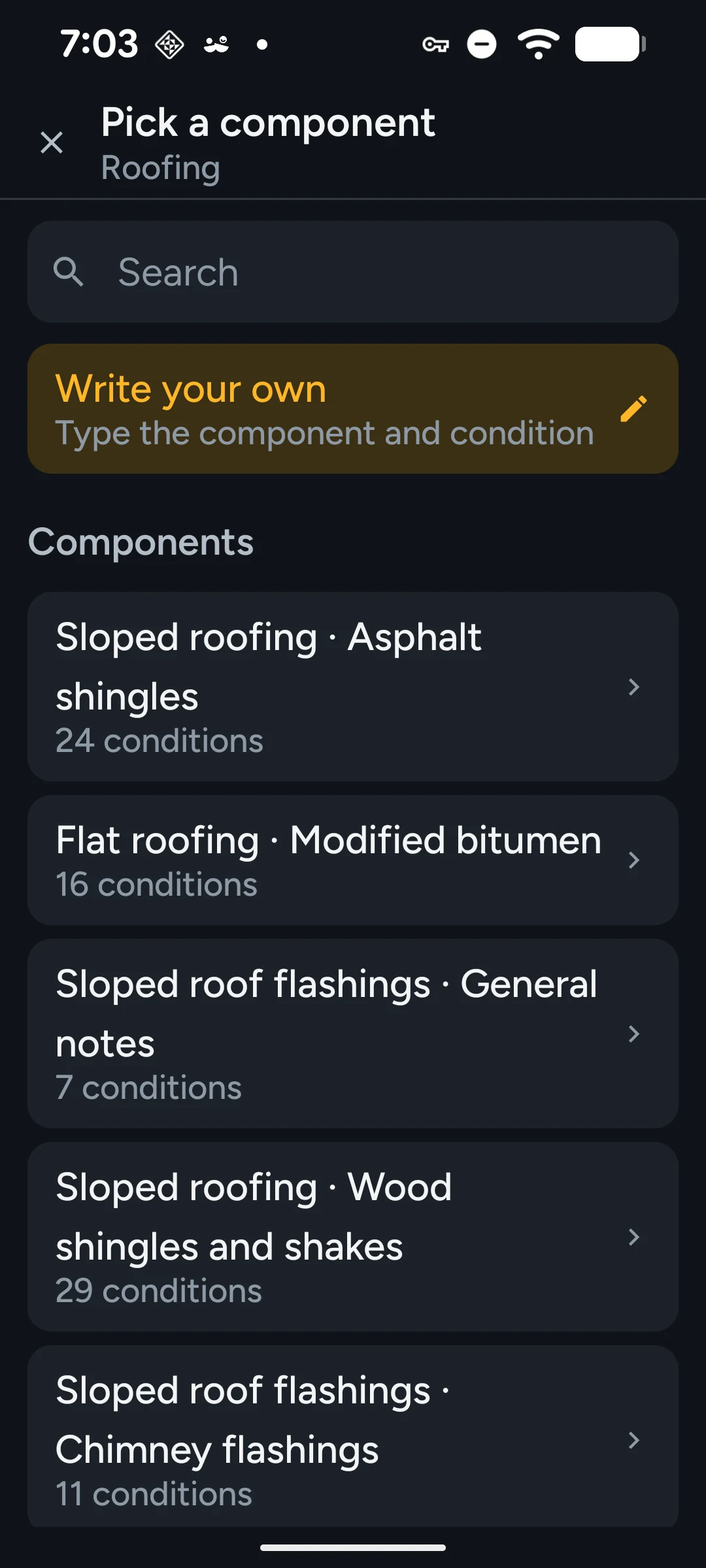
The app's component picker for Roofing: sloped roofing in asphalt shingles with 24 conditions under it, flat roofing with 16, roof flashings with 7, and an option to write your own.

The pick-lists are the company’s own words.

Task and time are pick-lists rather than free text because the real vocabularies are small and heavily reused, so the common values are one tap. Free text stays available as the escape hatch, because free text is how typos reach clients.

Nine sections, in the order the delivered report puts them in. Each carries its own notes, photos and findings, and a status of not started, in progress, or complete.

04The deliverable

The PDF renders on the phone.

Export report PDF lays the whole inspection out in the real report's structure — sections in order, finding records, photo grids — and hands it to the share sheet.

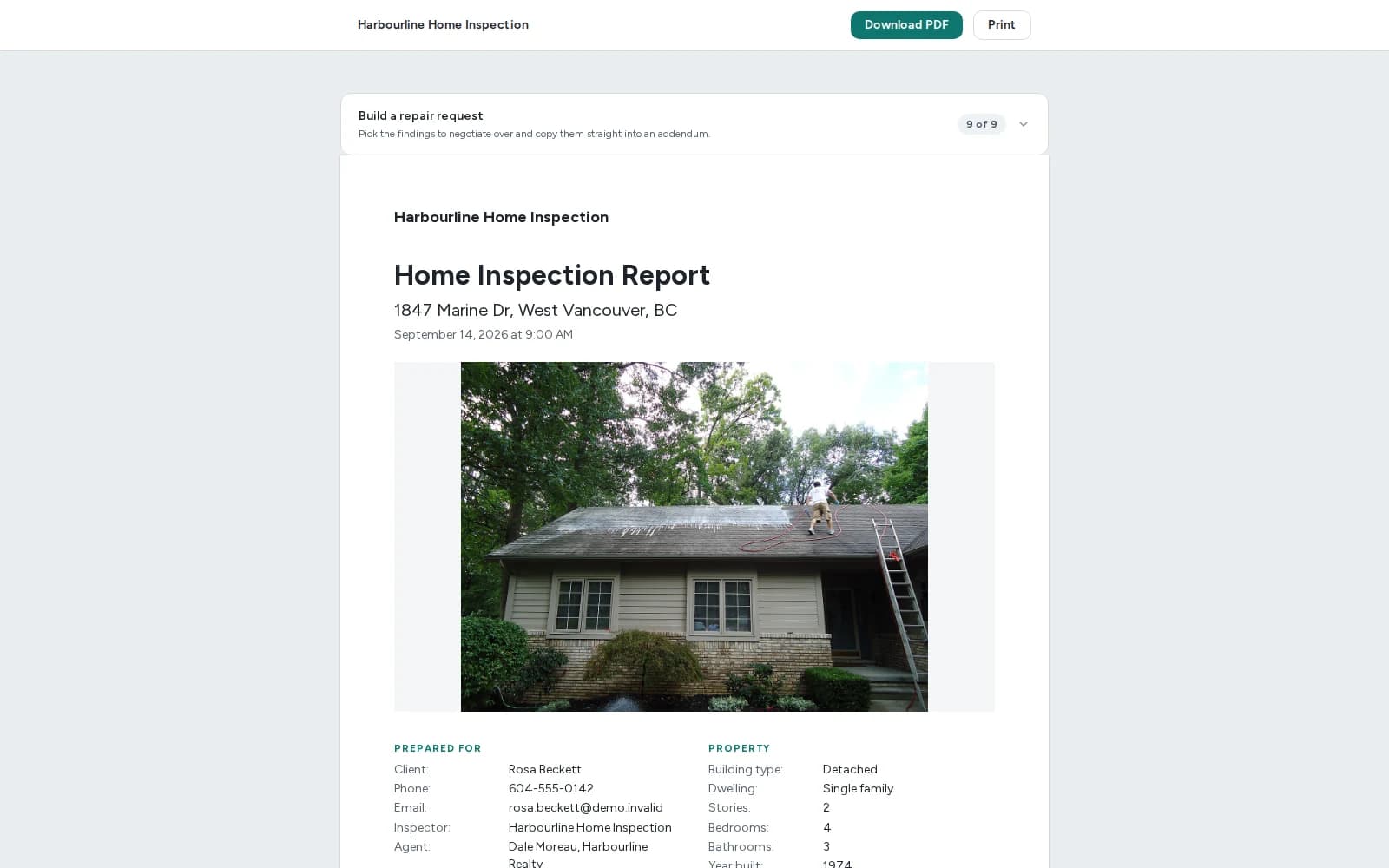
kensa.report/r/…
The published client report in a browser: cover photo, Prepared for and Property. Demo data.
A page of the exported report PDF.

The published report and a page of its PDF, as the client gets them. Demo data.

Rendered on-device
Drawn straight to a PDF on the phone with the platform's own renderer. There is no export service to be down and nothing to wait on.
Deliberately light on white
The app is a dark instrument panel because it is used in attics and crawl spaces. The PDF is not — it is the thing the client reads, so it is set for paper.
Re-inspections can't collide
Filenames carry the address and an id prefix, so a second visit to the same property never overwrites the first report.
The office already has it
Each inspection syncs to the office dashboard as you work, so by the time the PDF is shared the desk has seen every section. Being offline only means the dashboard lags — the walk is unaffected.
And a link for the client
Publish from the office and the client opens the report in a browser from a private link — the cover, every section, the findings with their photos, and a way to build a repair request from them.
05The office

The office sees the walk as it happens.

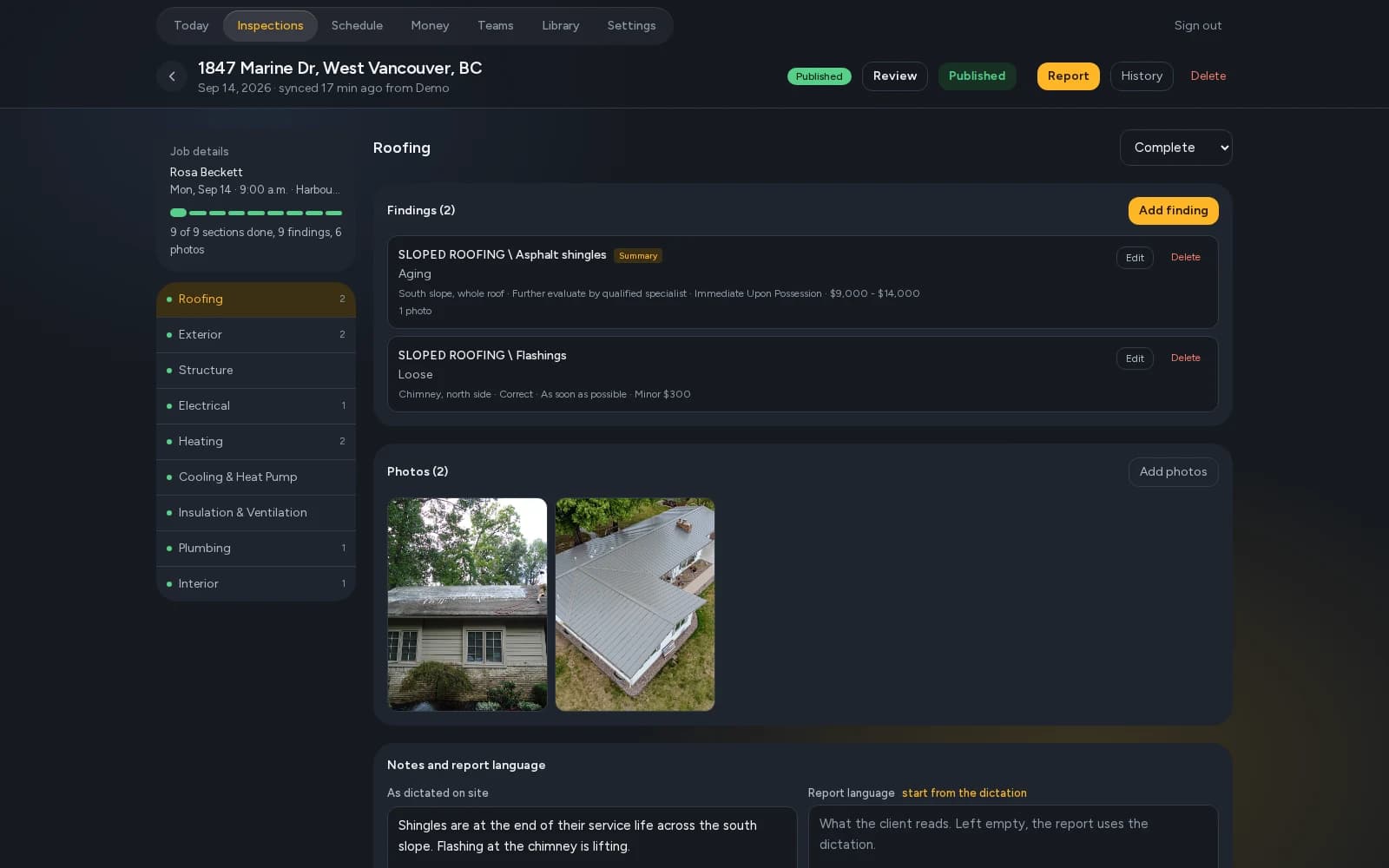
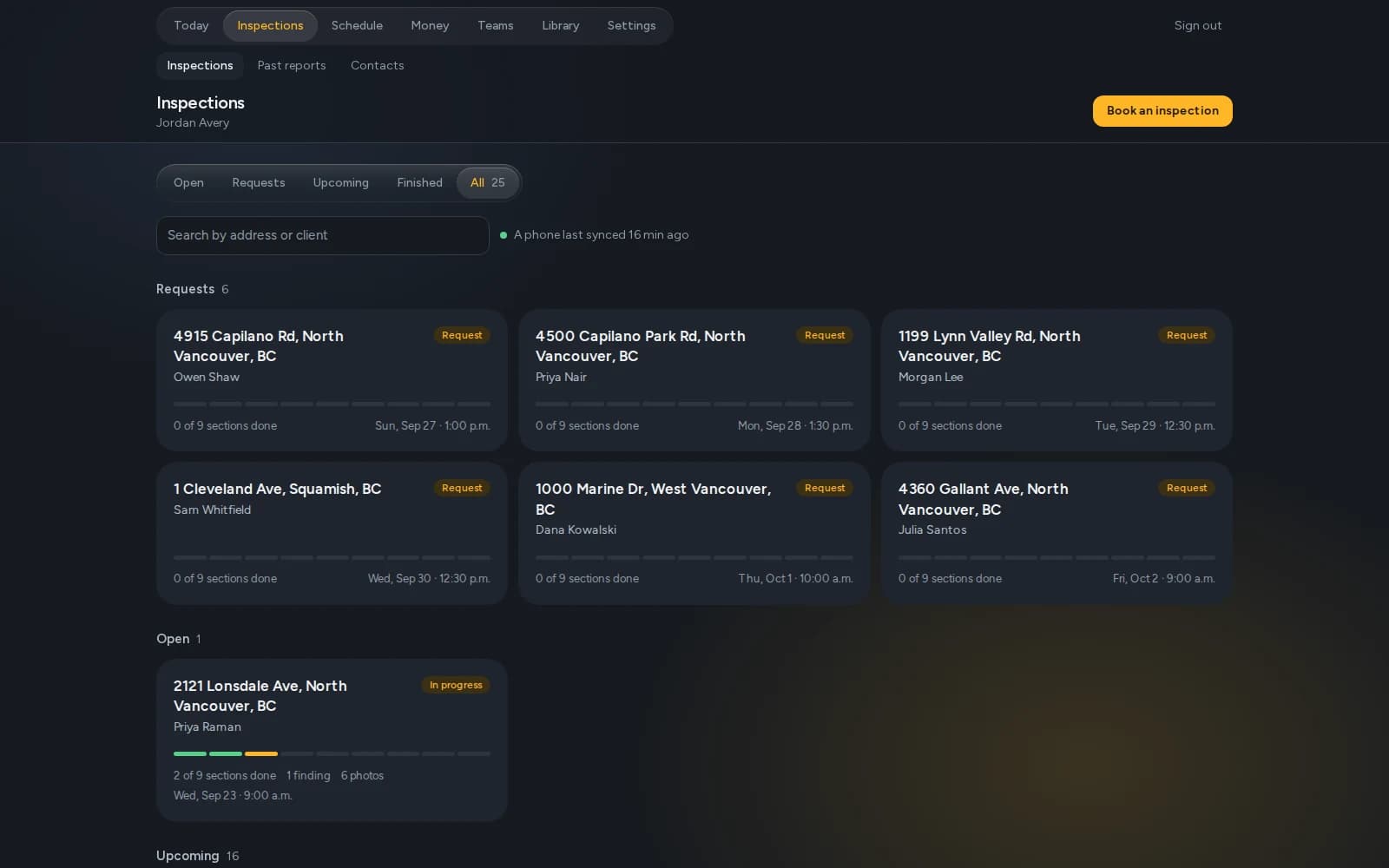
Every inspection syncs to your office site while you work. The office opens a browser — at the desk or anywhere else — and watches the house fill in: sections, findings in the report's record shape, every photo with its markup.

kensa.report/
The office's Inspections room: six booking requests and one walk in progress. Demo data.

Click the highlighted controls: they are the office’s real ones and go where they really go — try Finished, then the Marine Dr job, then Report. Captures of a demo company.

Requests and walks in one room

Booking requests wait to be confirmed, and a walk in progress shows its sections filling in — two of nine done, a finding, six photos — while the inspector is still in the house.

Edit from the desk
Findings and section notes can be corrected and expanded in the browser, where there is a keyboard and a large screen. The phone captures, the desk polishes.
Read it before it goes out
The whole inspection laid out in the delivered report's structure, ready to check before the client sees a page of it.
Print to PDF from the browser
The same report, printed from the desk — for the office's own copy, or for a client who wants it sent from there.
Behind your accounts
Nothing is shown without signing in. The phone signs in once with the same account and holds a key the office can revoke if the phone is lost. Photos are never handed out by a storage link — they are served only to someone signed in, or to the client holding their report's link.

Offline in a basement only means the office lags. The walk never waits for a connection, and syncs from any job site once there is one.

The business side

The rest of the business runs here too.

Invoices
Invoice every inspection from the office, and let clients pay online through your own PayPal. Holding the report until it is paid is built, and off by default.
Analytics
Invoiced and collected this month, what is owed now, month by month; finished inspections, time from inspection to report, findings per inspection, returning clients and inspections by agent.
Clients and leads
Contacts for your clients and agents. On Teams, a lead tracker too: where each lead stands, who referred it and how they found you.
The team room
On Teams, one room for the whole company to talk in, beside the schedule and the jobs instead of in a separate chat app.
Calendar
Two-way Google Calendar sync, and a feed any calendar app can subscribe to.
Seats and roles
An account each for everyone in the company, with the owner as admin.
06Around the job

The rest of the day, handled.

Booking, the inbox and the words themselves — the parts of the job that are not the walk, built into the same app and office.

Voice dictation

Say it. See it written.

Dictate on the camera screen, into a finding, into notes, or through the limitations run-through. Fillers drop out, acronyms come out as acronyms, numbers as digits, and the sentence is punctuated — on the phone.

Works offline with the optional on-device recogniser, a one-time download of about 700 MB.
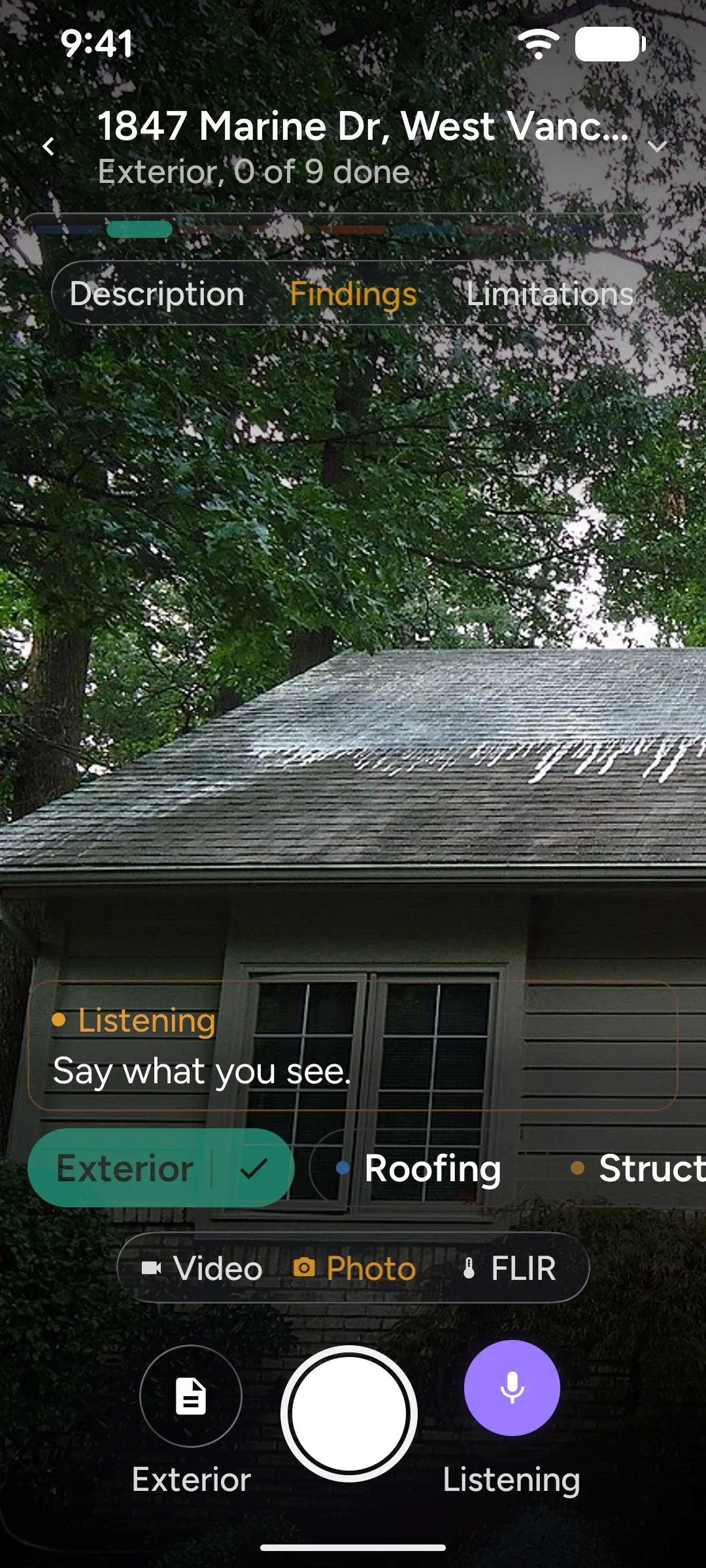
The Kensa camera screen while dictating: a Listening banner reading 'Say what you see', and the mic key lit.

Smart booking

Every request, checked against the real day.

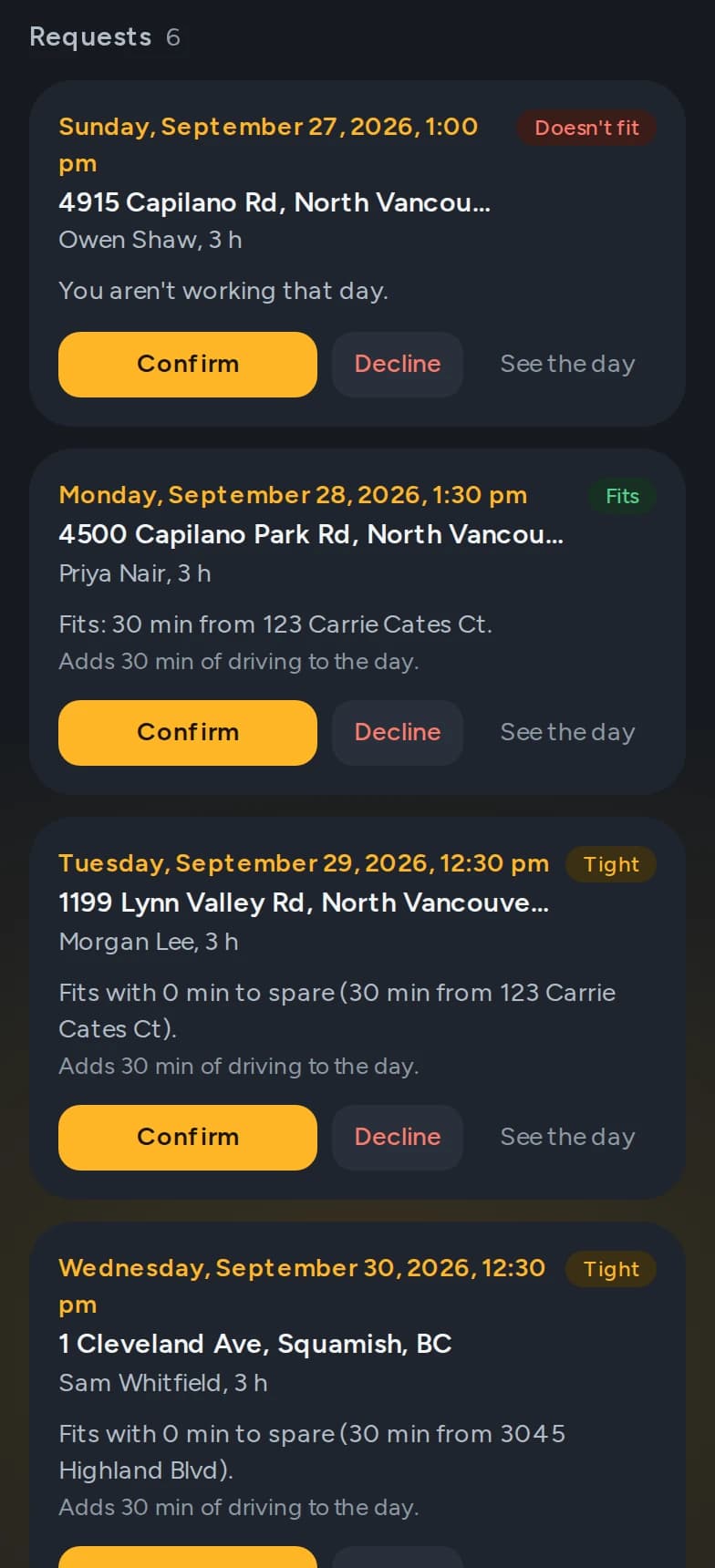
Working hours, the jobs already booked, the drive to and from each, a buffer between, and busy time in a connected Google Calendar. Each request comes back Fits, Tight — under fifteen minutes to spare — or Doesn't fit, with the reason.

The office's request queue: one request that doesn't fit, one that fits with 30 minutes to spare, two that are tight. Demo data.

Drive times are estimates unless the office has a Google Maps key.

Online booking

Clients book themselves.

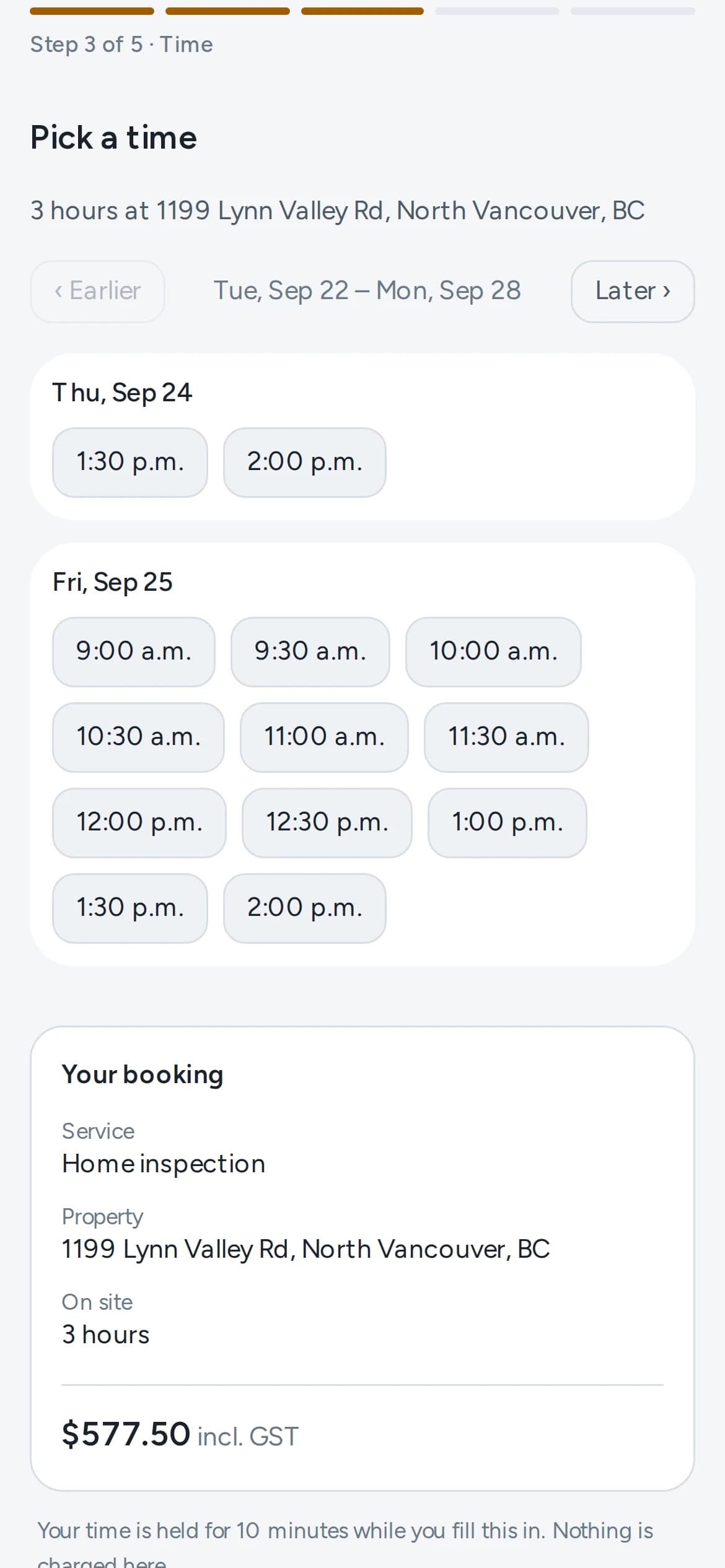
Your company's own booking page, no account needed: the client picks a service, then a time from the slots you offer, then leaves their details. Confirm each request yourself, or let it book automatically — your choice.

The public booking page, at phone width, on a demo company. Prices are the inspector's own.

The public booking page on a phone: step 3 of 5, picking a time from the open slots, with the booking summary. Demo data.

Pro AI · coming soon

An assistant for the inbox.

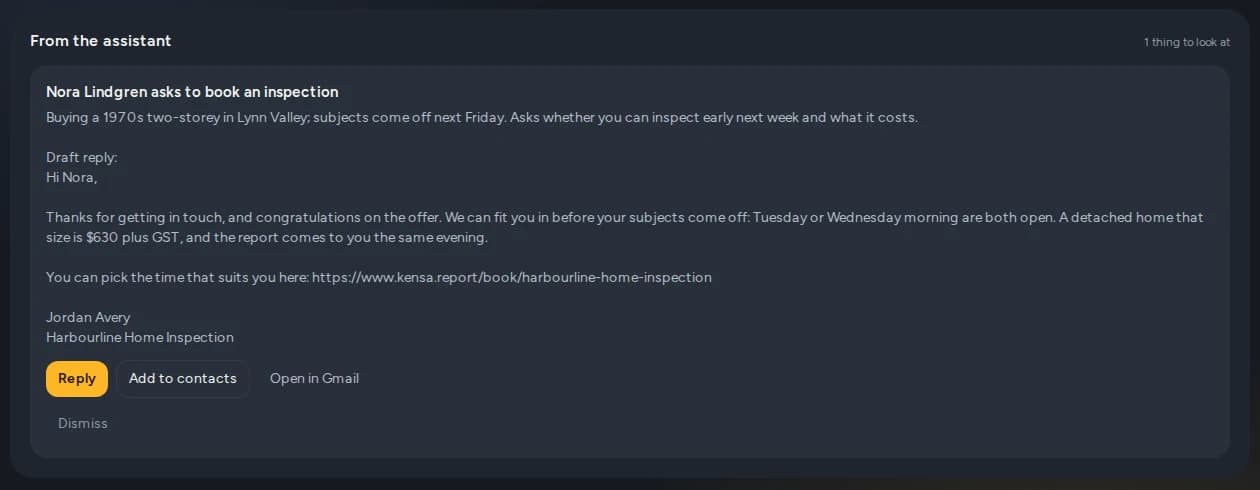
It reads new client mail in the office's Gmail, drafts a reply — with your booking link when someone asks for a time — and writes booked inspections into Google Calendar. It never moves, labels or deletes mail, and nothing is sent until you press Send. It switches on once Google approves its access to Gmail.

The office dashboard's From the assistant card: a client asking to book, with a drafted reply that includes the booking link, and Reply, Add to contacts and Open in Gmail.
Illustrative: the real interface, with a sample email and draft.

Security

Locked down by default.

  • Two-factor sign-in

    Turn on two-factor with any authenticator app, and every sign-in asks for its code as well as the password.

  • New device, new check

    A sign-in from a device the account has not seen before needs a code sent by email — or the authenticator code, when two-factor is on.

  • Row-level security

    The cloud database checks every read row by row, so an account only ever reaches its own company's inspections, clients and photos.

  • Encrypted and stress-tested

    Data is encrypted in the cloud database, and the system is stress-tested. Photos are never handed out by a public link, and a lost phone's key can be revoked from the office.

07Pricing

One price a month, and one more for each inspector.

US dollars, before tax. Everything the app and the office do is in the base plan — the walk, the schedule, the invoice, the report.

Kensa Pro

$80a month

Everything the app and the office do, for one inspector running the whole job — walked, scheduled, invoiced, paid.

One inspector. $40 a month for each one after that.

Kensa Teams

$140a month

For a firm rather than one inspector. Everything in Pro, plus the team room, leads and outreach.

Three inspectors. $40 a month for each one after that.

Kensa Pro AI

$100a month

Everything in Pro, and an assistant in the office that reads the inbox, drafts the replies and keeps the calendar straight.

One inspector. Nothing is sent without you. The assistant switches on once Google approves its Gmail access.

In every plan

  • The inspection app
  • The office
  • Your own library
  • The client report
  • Past reports
  • The schedule
  • Calendar subscription
  • Invoices
  • Clients pay online
  • Online booking
  • Analytics
  • An account each

On top of any plan

Thermal imaging$15 a month

The FLIR ONE camera in the app — live thermal view, thermal photos, and those photos in the report. The camera itself is bought once from FLIR.

While Kensa is in beta a plan is set up by hand rather than bought from this page, and it takes effect on the phone’s next sync. Monthly, in US dollars, before tax. There is no annual plan and no free trial.

See the full pricing page
08In development

A camera that knows what it is looking at.

In development — not in the shipping app yet. Kensa on the phone today is a field tool that does what it says; this arrives when it has earned its place.

Point the camera at a defect and the app names the component and offers its likely conditions, drawn from that component's own defect list — a shortlist to tap, not a paragraph to correct.

It suggests; the inspector decides. Anything it is unsure of stays a shortlist, a component it does not recognise is flagged for review rather than guessed at, and task and time remain the inspector's call.

09Who it's for

Built next to the job, not near it.

Kensa is built with Zinc Home Inspections in North Vancouver, and the output is matched to the structure of the reports that company actually delivers — the same section order, the same finding records, and task and time vocabularies drawn from its own past reports.

That is the whole design constraint. This is a tool for inspectors who already have a report format their clients expect, and who would rather spend the evening not writing it.

If you inspect for a franchise with a mandated reporting platform, this isn't for you yet. If the report is yours and the evening is the problem, it is.

  • You inspect on foot, with a phone already in your hand
  • Your report is finding records under category headers
  • Your notes today are a voice memo and a camera roll
  • You carry a FLIR ONE, or you have been meaning to
10Questions

What inspectors ask first.

Short answers, in roughly the order they come up on a first call.

What does it cost?

Kensa Pro is $80 a month for one inspector, Kensa Teams $140 for three, and Kensa Pro AI $100 — in US dollars, before tax, with $40 a month for each inspector beyond a plan's own. Thermal imaging is $15 a month on top of any plan. There is no annual plan and no free trial; during the beta a plan is set up by hand.

Is there an iPhone version?

Not yet. Kensa is Android today. iOS is pending a developer account and is planned, but there is no date and this site won't invent one.

Does it work without a signal?

Yes. The camera, photo markup, the finding editor and the PDF export all run on the phone, and dictation does too with the optional on-device recogniser (the phone's default speech service may need a connection). The only networked part is the sync to your office, and it simply catches up when you have a connection again.

Where does my client data live?

On your phone — a walk works with no signal at all — and in your company's office site, which only your accounts can open. Photos are served only to someone signed in, or to the client holding their report's link. Data is encrypted in the cloud database and fenced to your company row by row, and a lost phone's key can be revoked from the office.

Do I need a FLIR camera?

No. Thermal is a paid add-on. With a FLIR ONE or FLIR ONE Edge Pro attached on Android 13 or newer, the viewfinder toggles to the thermal stream, the same shutter captures it, and one press saves the thermal image and the ordinary photo together. Without the camera, everything else works exactly the same.

Can I keep using my current reporting software?

Yes, and most inspectors will at first. Kensa produces a finished PDF in the report structure your clients already recognise — it replaces the evening's typing, not your whole back office.

What happens if the app crashes mid-inspection?

Nothing is lost. Everything you've captured is written to the phone's storage as you go, and it's all there when the app reopens.

Is it doing anything with AI?

In two places, both kept on a short lead. Pro AI adds an assistant that drafts replies to client mail — nothing is sent until you press Send — and it switches on once Google approves its access to Gmail. And a camera that suggests the component and its likely conditions is in development, not in the shipping app yet. Dictation today is cleaned up by rules on the phone.

Not here? Ask us directly — a person who builds it answers.

11What's next

Honest about the edges.

  1. More inspectors

    It is on real inspections now, with the company it was built alongside. The next step is hands that did not help design it, and whatever the walk turns out to need once it meets them.

  2. iOS

    Android today. iOS is pending a developer account and a second pass at the parts that touch the camera. There is no date and this site will not invent one.

  3. The business around the report

    Online booking with a public page and a request queue, a two-way Google Calendar, invoicing and a report that can wait until its invoice is paid. Booking and the calendar are live; invoicing runs from the office. The agreement is built and not switched on yet.

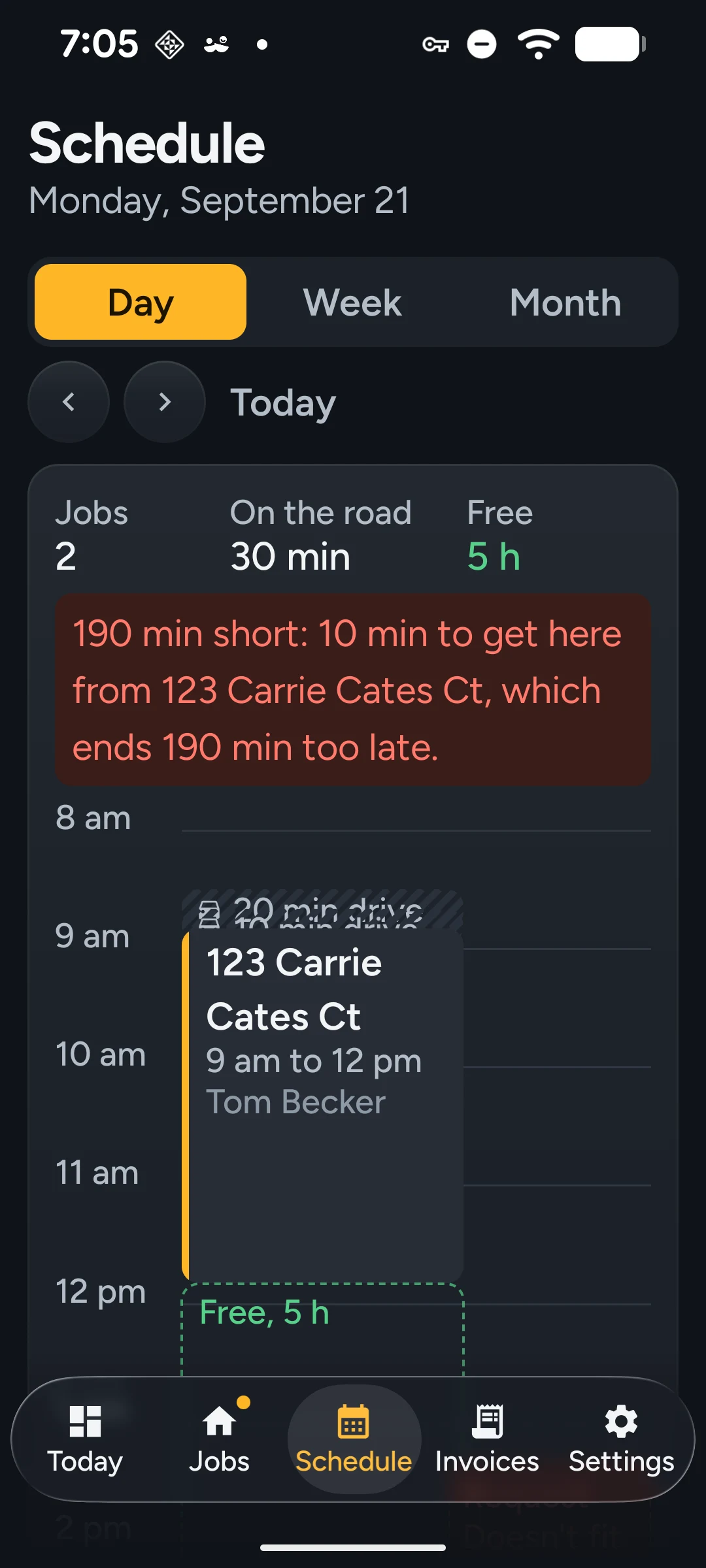
    The app's day view: two jobs, thirty minutes on the road, five hours free, with the drive to each job drawn as a block that takes up room.
  4. A better rewrite of what you say

    Speech already becomes report language on the phone, by rules: fillers out, acronyms and numbers right, sentences punctuated. A trained rewriter that does better is in the app now, switched off and under test, and will arrive as a suggestion you can undo.

  5. Prediction, brought back in

    The model flow returns from its branch when the round trip is worth it. It shares the same record, the same editor and the same settings, so the seams are already in place.

Kensa

Stop writing reports at night.

It is in beta now, on real inspections. If you inspect for a living and want to carry it through a house of your own — especially if you are willing to say exactly what is wrong with it afterwards — say so.

Or sign up for the office now.